
Single-file handoff
Package the separated stack into one PSD so a client, retoucher, or teammate can open the layer panel immediately.
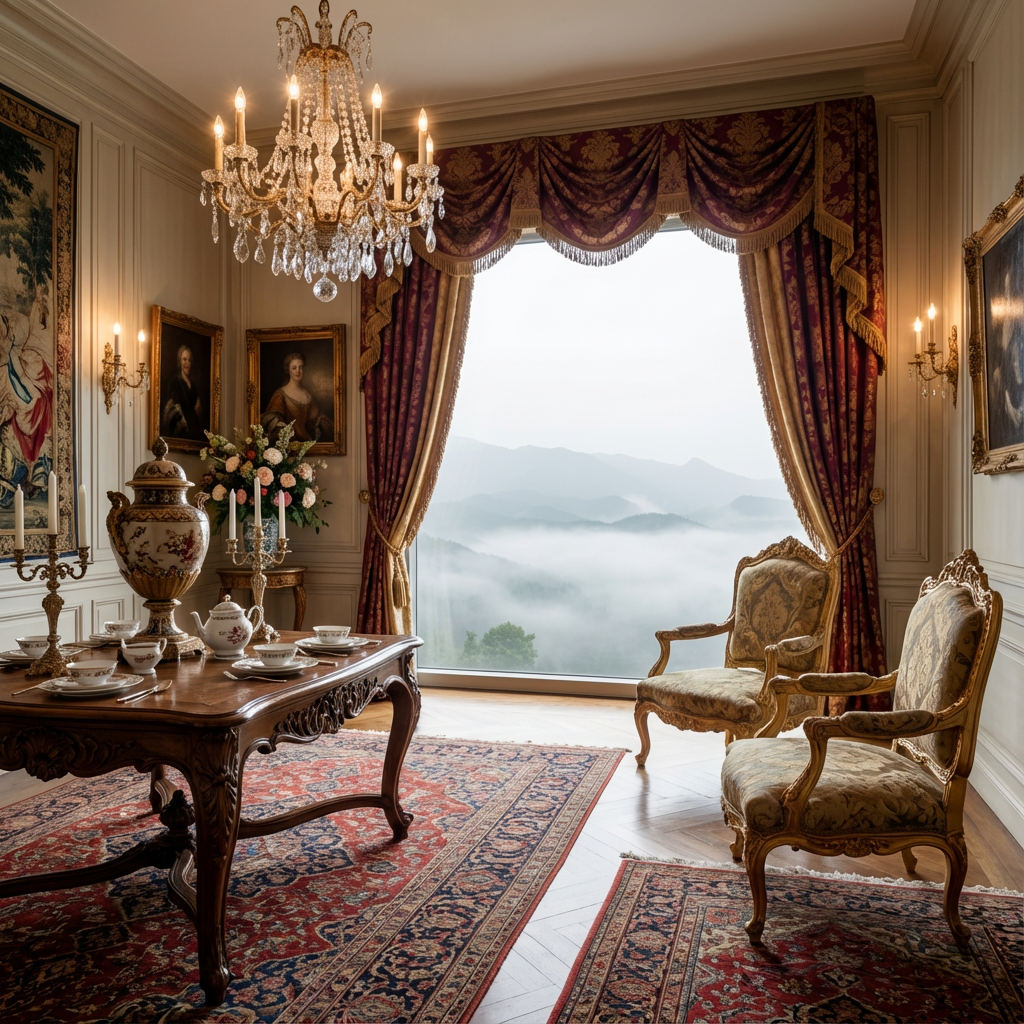 Orijinal
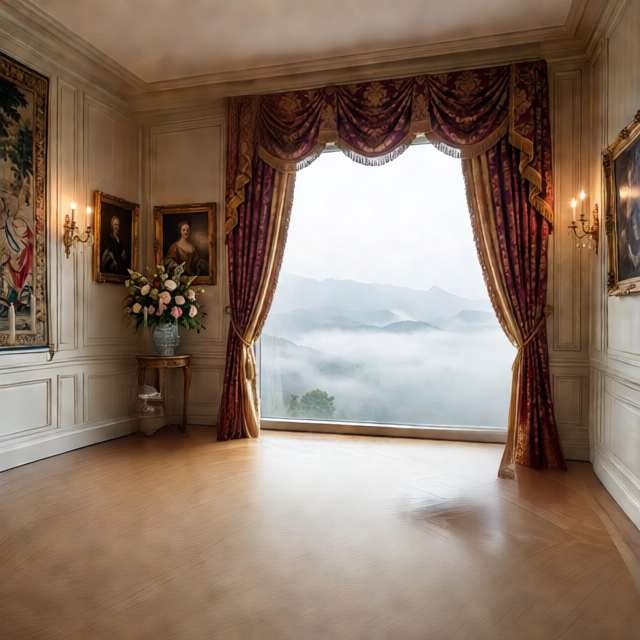 Layer 1
Upload an image to convert into PSD layers
JPG, PNG, WebP
Görseli buraya bırakın veya yüklemek için tıklayın
Free previews split into 2 layers; any credit pack or plan unlocks up to 8.
Upload an image to convert into PSD layers
JPG, PNG, WebP
Görseli buraya bırakın veya yüklemek için tıklayın
Free previews split into 2 layers; any credit pack or plan unlocks up to 8.
PSD workflow
Most JPG to PSD converters only change the file extension and give you one flat layer. Here the image is split into separate layers first, so the PSD opens with a real layer panel.
Package the separated stack into one PSD so a client, retoucher, or teammate can open the layer panel immediately.
Keep background plates below subjects and details above support layers, then continue naming and cleanup in Photoshop.
Use the PSD as a first-pass document for mask refinement, color correction, product retouching, and composite edits.
A layered PSD export takes AI-separated transparent layers and packages them into one Photoshop-compatible file. It is best for handoff, retouching, Photopea editing, and design review when loose PNG files are inconvenient.
PSD builder
Generate the image layers first, check the order, then export a PSD when you need designers, retouchers, or clients to continue work in Photoshop or Photopea.
Input: one flattened image
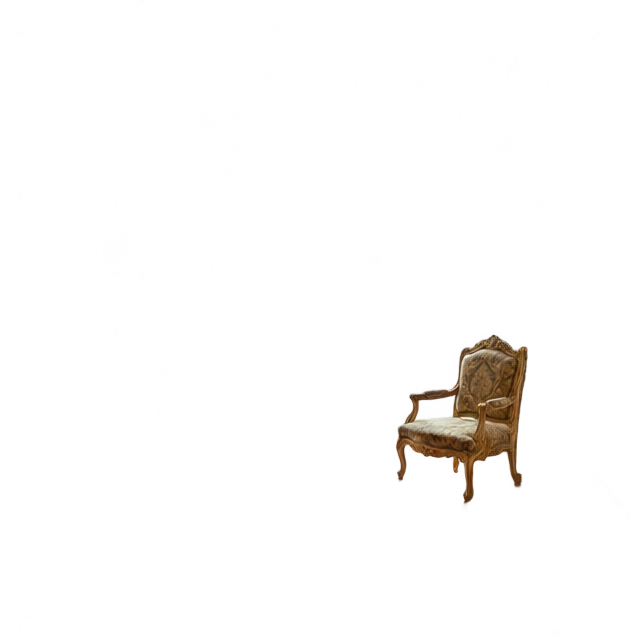
Output: Photoshop PSD stack
01
Start with a flattened JPG, PNG, or WebP where Photoshop editing would save time: product images, ad composites, posters, or concept art.
02
Run AI separation first. The PSD exporter then uses those transparent layer files rather than inventing a fake Photoshop document.
03
Download the PSD, open it in Photoshop or Photopea, then refine masks, rename layers, and adjust blend order for production.
Formats
Convert a JPG, PNG or WebP into a layered PSD that opens in Photoshop, Photopea, GIMP or Affinity Photo. Prefer loose files? Download the same layers as a PNG ZIP.
Send a layered file instead of a flat image when clients expect editable Photoshop deliverables.
Start retouching from separate subject, shadow, and background layers instead of rebuilding masks from scratch.
Use a PSD stack as a base for ad composites, hero banners, marketplace images, or social variants.
Open the exported PSD in browser-based editors when Photoshop is not installed locally.
Best fit
Each tool page has a different production intent, so the right page depends on output format, source image, and cleanup needs.
Use it for
Use it when you need a layer panel in Photoshop or Photopea, or a layered file to send to a client or designer.
Avoid when
If the user plans to drag separate files into Figma, Webflow, or a motion tool, PNG ZIP may be faster than packaging everything into PSD.
Output focus
The PSD contains image layers built from generated transparent files. It does not promise live text, vector shapes, or hidden background reconstruction.
PSD details
Yes. After AI separation, the browser can package the generated transparent layers into a layered PSD for Photoshop handoff.
No. The export creates image layers. Text-like areas can be separated visually, but they are not converted into live Photoshop text objects.
The image is separated into transparent layer images first, then those images are packaged into a PSD layer stack.
It is a fast starting point. Designers may still refine masks, edges, and layer names before final production.
Start here when the goal is broad layer extraction before choosing PSD or PNG export.
Prepare ecommerce product, shadow, and background layers before exporting a client-ready PSD.
Turn a flattened logo image into separated icon, wordmark, background, and effect layers.
Improve exposure, repair a mark, or retouch a source before building the layer stack.