
Semantic regions
Ask for multiple scene regions instead of one subject mask: background plates, primary objects, foreground details, shadows, and overlay-like elements.
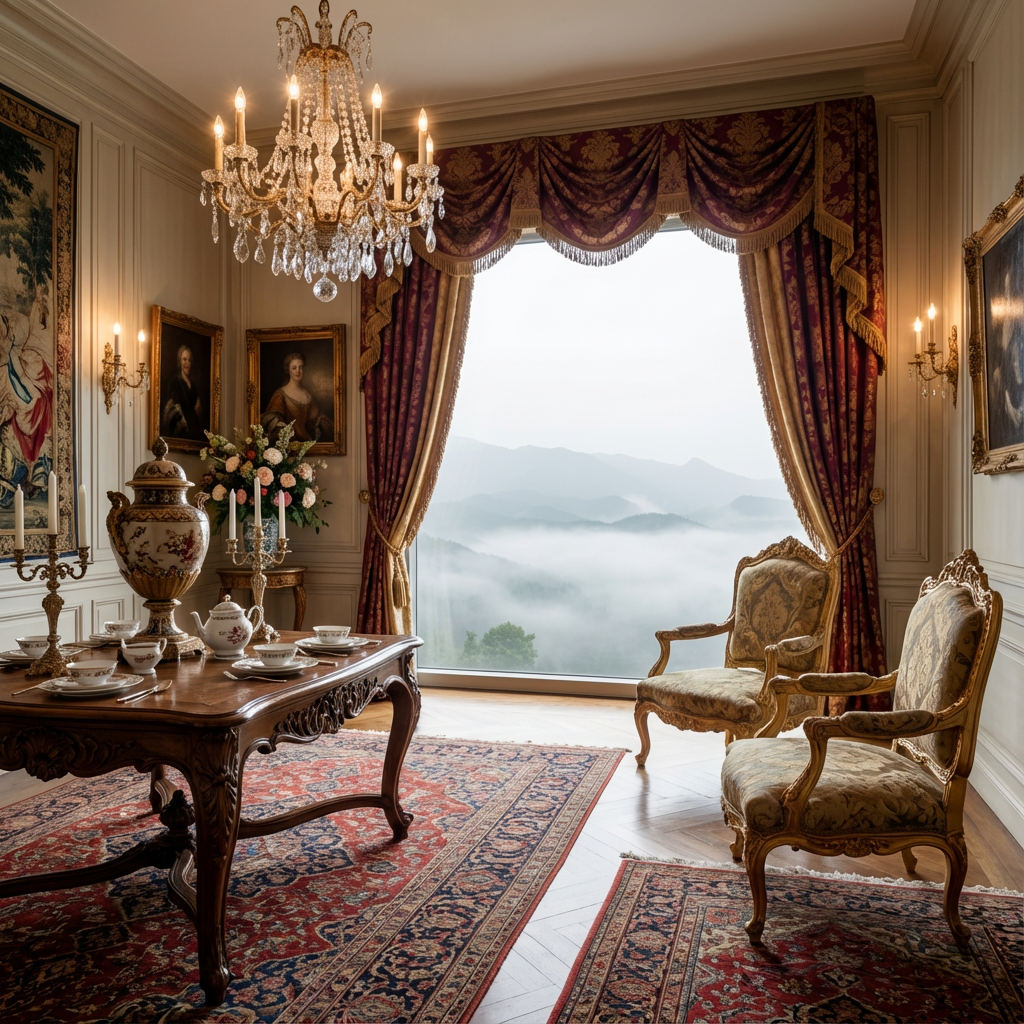 Original
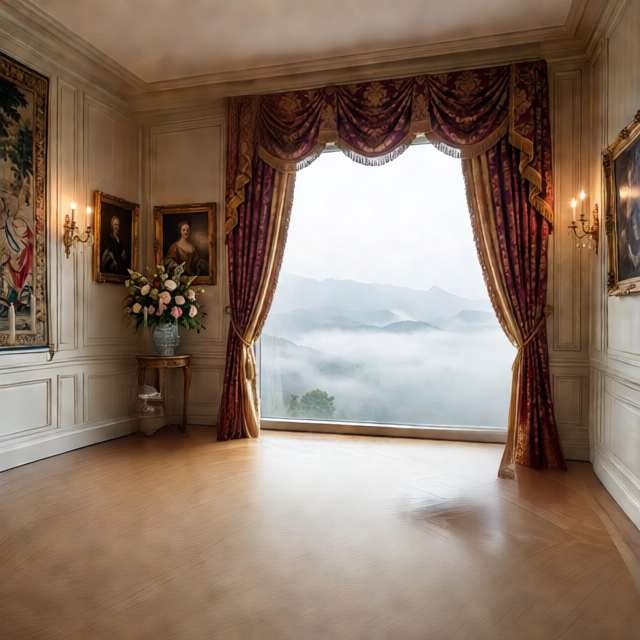 Layer 1
Click or drag an image here
JPG, PNG, WebP
Arrastra una imagen aquí o haz clic para subirla
Free previews split into 2 layers; any credit pack or plan unlocks up to 8.
Click or drag an image here
JPG, PNG, WebP
Arrastra una imagen aquí o haz clic para subirla
Free previews split into 2 layers; any credit pack or plan unlocks up to 8.
Core workflow
Split a normal image into several editable parts instead of removing one background. It works for posters, screenshots, collages, social graphics, and AI images with several visible planes.
Ask for multiple scene regions instead of one subject mask: background plates, primary objects, foreground details, shadows, and overlay-like elements.
Use the thumbnail strip to compare layers quickly before exporting. This is useful when a dense image returns several partial visual regions.
Choose PNG ZIP for separate transparent files, or PSD when the same stack should travel as one editor-ready document.
Image to layers means separating one flattened image into several transparent RGBA files, such as background, subject, foreground detail, shadow, and text-like regions. Use it when you want to hide, move, or export individual visual parts.
Layer stack
Use the layer count to decide how much structure you want. A simple graphic may need subject, text, and background layers; a dense poster may need extra foreground and shadow layers.
Input: JPG, PNG, or WebP
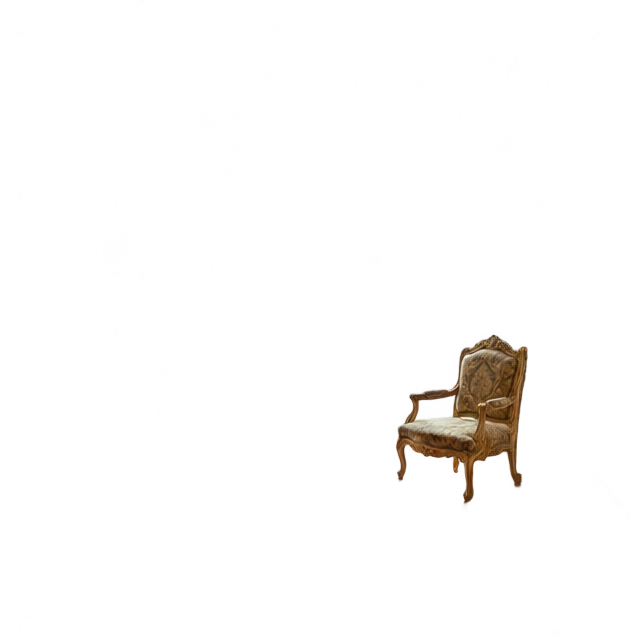
Output: separate transparent layers
01
Start with a flattened image that contains at least two visual planes, such as a subject on a background, a poster with overlays, or a product beside props.
02
Use a lower count for a simple image. Increase it when the source has shadows, foreground objects, captions, or several overlapping areas.
03
Review the generated stack and download only when the layers make sense for editing, compositing, or handoff.
What you can split
Split a PNG into layers, separate the elements of a poster, pull text and props away from the background, or turn one flat image into a set of editable transparent PNGs.
Turn a single transparent or flattened PNG into individual layer files for layout edits and creative reuse.
Extract foreground, text-like regions, subject, and background pieces from posters or social graphics.
Use separate layers as starting material for parallax, reels, animation, and compositing workflows.
When text and objects land in separate layers, localization teams can rebuild layouts faster.
Best fit
Each tool page has a different production intent, so the right page depends on output format, source image, and cleanup needs.
Use it for
Start here when you have an ordinary image and want its visual parts as separate layers, before deciding whether you need a PSD, product variants or animation assets.
Avoid when
If you only need the background removed, a background remover is faster. Image to layers is for several visual regions, not a single transparent subject.
Output focus
The primary value is reviewing separate PNG layers. PSD export is available after the stack makes sense, but the page is not only a PSD converter.
Layer basics
It means converting a normal flat image into separate transparent layers, such as subject, background, shadows, text, and foreground details.
Yes. Background removal usually returns one subject cutout. Image-to-layers tries to keep multiple scene parts editable.
Yes. A flattened PNG can be split into separate transparent layer files. If the PNG already has transparency, the generated layers still depend on the visible content.
Yes. Upload one image, choose how many layers you want, and ImageLayerSeparator separates it into transparent PNG layers that you can download as a ZIP or a layered PSD.
No. AI separation is a production shortcut, not a guaranteed manual mask. Very small details, transparent glass, and heavy overlaps may need cleanup.
Use this when the final deliverable must open as one Photoshop or Photopea document.
Use product-specific copy for item, shadow, reflection, packaging, and marketplace variants.
Split illustrations, character art, and comic panels for parallax or remix workflows.